

I opened a Google Doc the other day to write something, and before I could type a single word, a big box at the bottom of the screen invited me to “write with Gemini.” No obvious close button. No way to swipe it away. Just a garish AI prompt staring at me while I tried to think.
I got mad. Then I spent twenty minutes hunting for the off switch. Since you probably don’t have that kind of patience, here’s how to kill it.
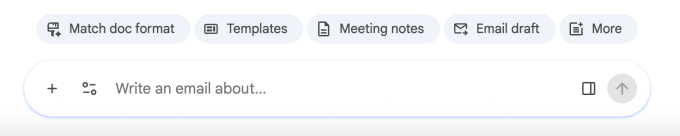
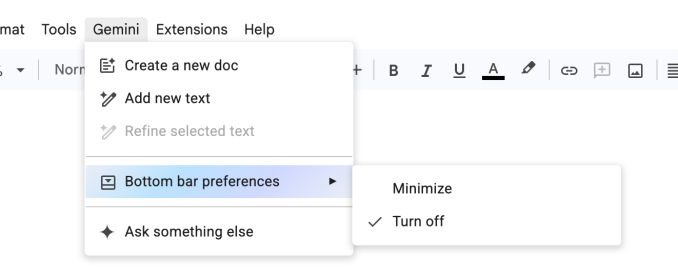
The quick fix is hiding in plain sight. Look at the top menu bar above your document. Click “Gemini,” then select “bottom bar preferences” from the dropdown. You can toggle that bottom bar off, and the AI box disappears. Simple enough, once you know where to look.
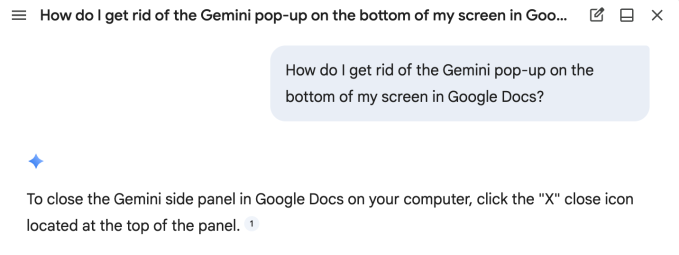
Full disclosure: I was so annoyed that I initially missed “bottom bar preferences” entirely. Instead, I clicked “Ask something else” and asked Gemini to help me remove itself from my life. AI may not have a survival instinct, but it sure acted like it—it told me to click the X icon. That just closes the conversation. It doesn’t remove Gemini. Suspicious.
Other Google Docs users have reported a “help me write” feature that hovers over your cursor while you work. I haven’t seen it yet, but it sounds infuriating. Benjamin Franklin once said an ounce of prevention is worth a pound of cure. He was talking about fire safety. I’m talking about product design.
The nuclear option lives in Gmail. Instead of playing whac-a-mole with each AI feature, you can disable “smart features” across your entire Google workspace.
First, go to your Gmail inbox. Click the gear icon for Settings, then “See all settings.” (While you’re there, maybe pick a fun theme for your inbox. A little whimsy won’t kill you.)
Scroll about halfway down the page until you find “Google Workspace smart features.” Click “Manage Workspace smart feature settings.”
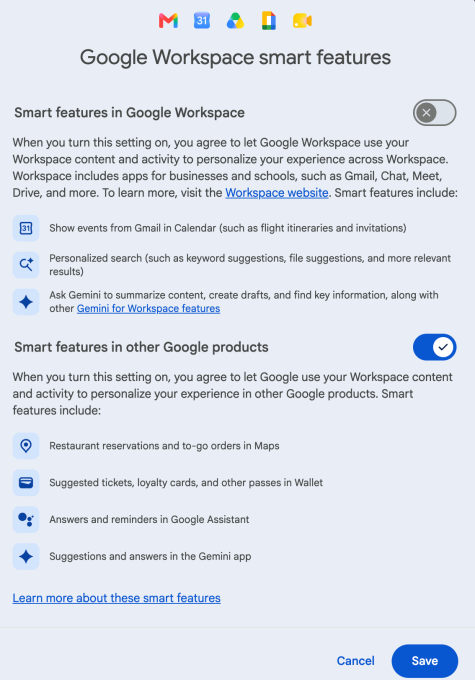
You’ll see two toggles. One turns off smart features in Google Workspace—that’s the one that kills the Gemini pop-ups in Docs. The other applies to other smart features, which I personally find less annoying. I only turned off the first one. But if you hate when Gmail automatically creates calendar events for your flights, this is where you fix that.
You should now be safe from annoying Gemini pop-ups. Rest easy. Write your article in peace.
Comments (0)
Login Log in to comment.
Be the first to comment!